

So, You want to know about how to lock your memory card So that the files stored in your memory are protected and no one can access them without a password. But first you need to know about its positive and negative aspects. And later you will know which steps you can use to lock the memory card. Which is called encrypted memory card in the language of technology.
Positive:
- The advantages of encrypting your SD card are that other devices will not be able to use the media stored in it.
- No one will be able to use your memory card and open any file stored in it.
- Even if you lose your memory card, your files will be safe.
Negative side:
- But on the other hand it is also very difficult. Every time you try to access a file on the SD card it will ask you to enter the password and so it becomes very annoying.
- If your phone stops working for any reason (broken, suddenly damaged), the SD card in your phone cannot be decrypted and will not work on any other phone except the original phone. So be careful and be sure to back up your belongings elsewhere.
- If you accidentally open or corrupt your memory card for any reason, then your saved files will be lost. This means that your saved files can be lost at any time. Now maybe you understand something. Anyway you want to know how to lock memory card. Basically it can be done in three steps.
Samsung phones:
This is very easy to do on a Samsung phone. I will show you how to do this step-by-step on my Samsung a2 core phone as an example.
Step-1
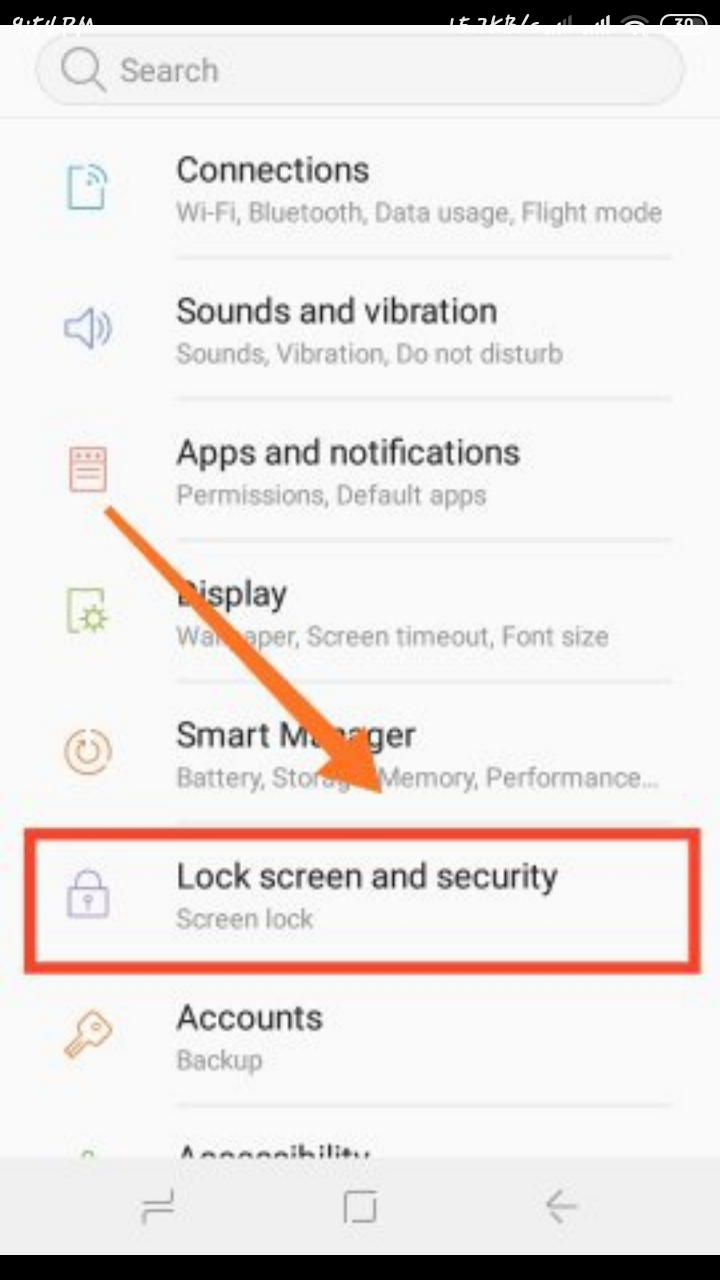
Go to Settings of your Samsung phone and click on Lockscreen and Security option.

Then insert the memory card and click Encrypted SD Card.

Then click on Encrypt SD Card again.

Now wait patiently. The time here depends on the storage on your memory card but lasts for a maximum of 5 to 15 minutes.
Results:

Now inserting a memory card into any device will show the files but will not work. I put it in my Xiaomi phone as an example.


Results No file will work. If you want to go back again, you need to \”Decrypted\” by going to the device you have encrypted.

This way your files will be protected. No password required.
 ShawonsTech Technology
News provider
ShawonsTech Technology
News provider 
Leave a comment